Team & the tech app
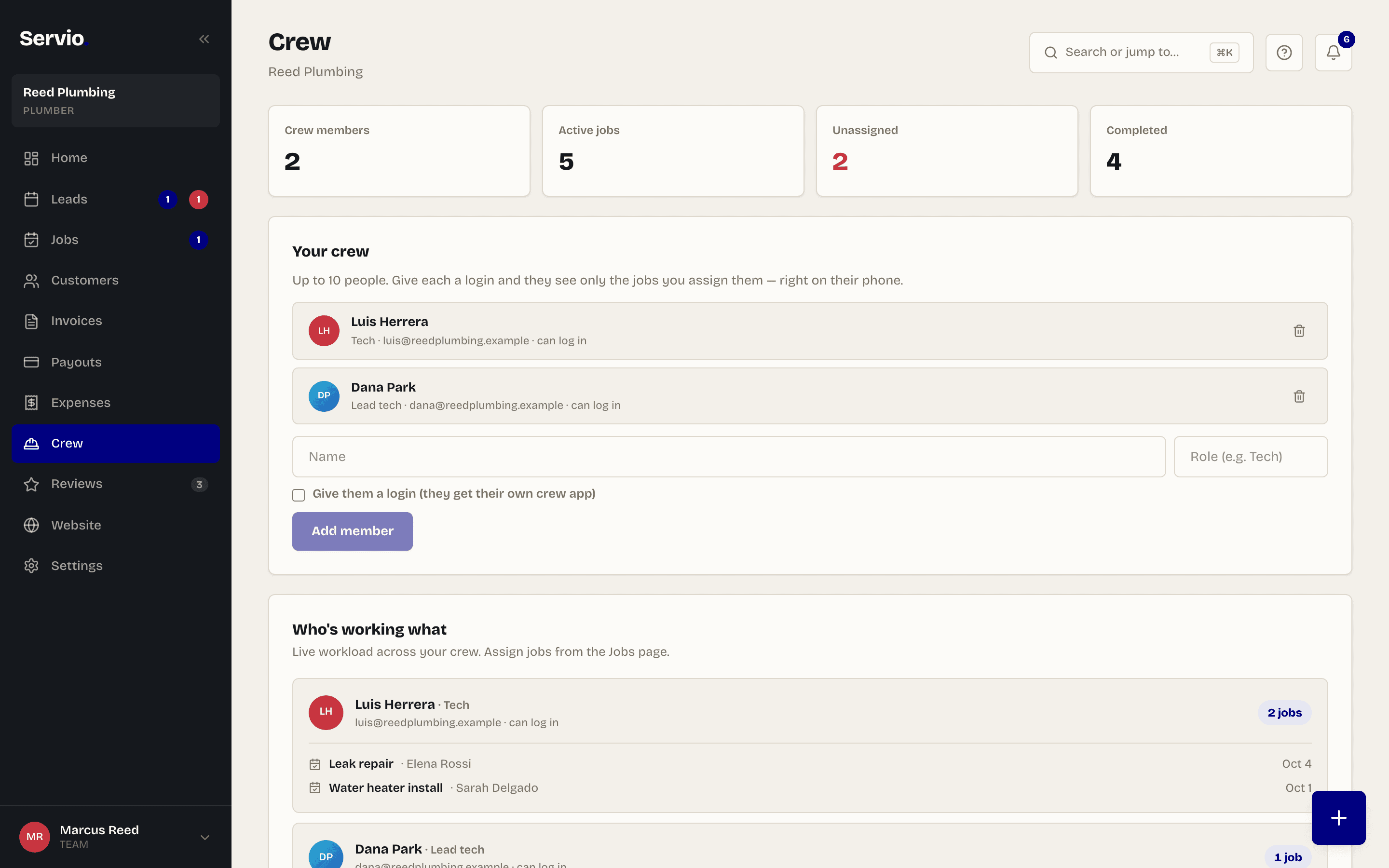
Add your techs, give each a login, assign jobs — they see only their own work on their phone.
Add a team member#
Team features are on the Team plan. Open Crew in the menu.
- 1Tap Add member. Enter their name, role (for example "Tech" or "Lead"), email and a password you choose.
- 2Tell them the email and password. They sign in at servio.fit/login or in the Servio iPhone app.
- 3Assign jobs from the Jobs list using Assign….
What a tech sees#
A team member who signs in gets the tech version of the app: Today (their route for the day with a progress ring), Jobs, a Map of their stops with one-tap navigation, their Customers, and a Profile where they set the days they're available and their notification preferences. They can't see your money, your other customers or your settings.
On a job, a tech can tick the checklist, take before and after photos, capture a signature, mark it done and — if you've allowed it — collect payment with a QR code or Tap to Pay on iPhone (after you've done the one-time setup).
Notifications#
Techs get a notification on their phone when you assign them a new job or change a time. Owners get notifications for new bookings, payments and reviews.
Email support@servio.fit — tell us what you were trying to do and we'll answer the same day.