Getting started
From signing up to your first booking in about ten minutes — no technical setup.
What Servio is#
Servio runs the business side of a service company so you can spend your day doing the work. It gives you a booking page customers can book from, a jobs list and calendar, a customer list, estimates and invoices, and a way to get paid — by card online, by payment link or QR code, and in person with Tap to Pay on iPhone.
You use it in two places: the website at servio.fit on any computer or phone, and the Servio app for iPhone. Both show the same business, so anything you do in one shows up in the other.
Note:Nothing in Servio needs a technician to set up. If you can fill in a form, you can run your whole business on it.
Create your account#
- 1Go to servio.fit/start (or open the iPhone app and tap Get started).
- 2Enter your name, email and a password of at least 8 characters.
- 3Pick what kind of business you run — plumber, cleaner, barber, landscaper and so on. This only changes the words Servio uses (for example "Clients" instead of "Customers") and the services it suggests.
- 4Enter your business name, city and phone number. Add your street address if you want it printed on invoices.
- 5Choose when you take bookings: by appointment (customers pick any open time) or set your opening hours day by day.
- 6Pick your services. Each one has a length (how long it takes) and a price. You can add your own and change them later in Settings.
- 7Pick a brand color. Your booking page and your invoices use it.
- 8Choose a plan. Every plan starts with a free trial, and you can cancel from Settings at any time — see Billing & plans.
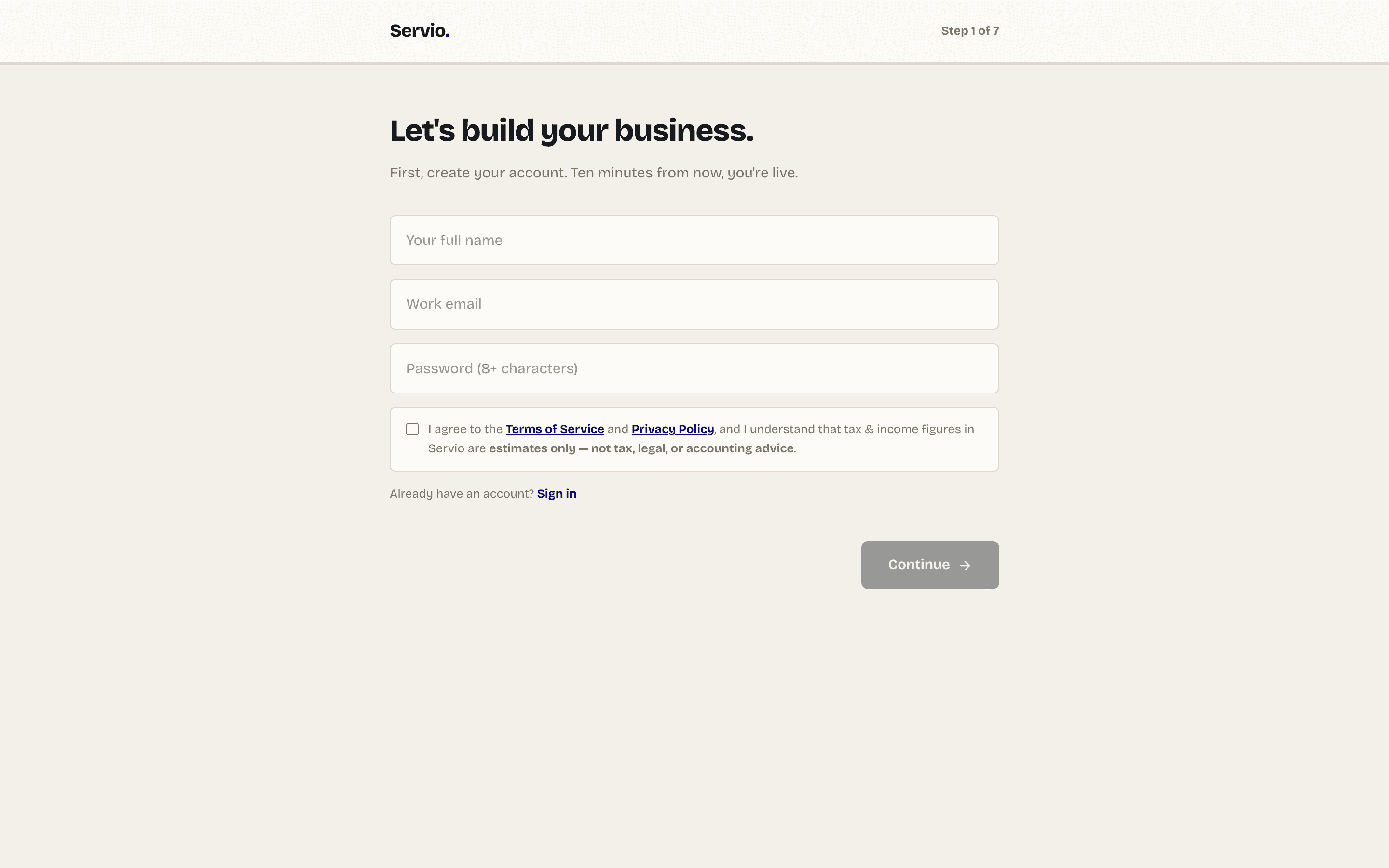
When you finish, Servio builds your booking page, your customer list and your dashboard, and signs you in.
Your dashboard#
The dashboard is your home screen. The top row tells you what matters today: jobs today, money collected, money left to collect, and how many customers you have. Underneath are the things that need you next — bookings to confirm, invoices to send, a review link to share.
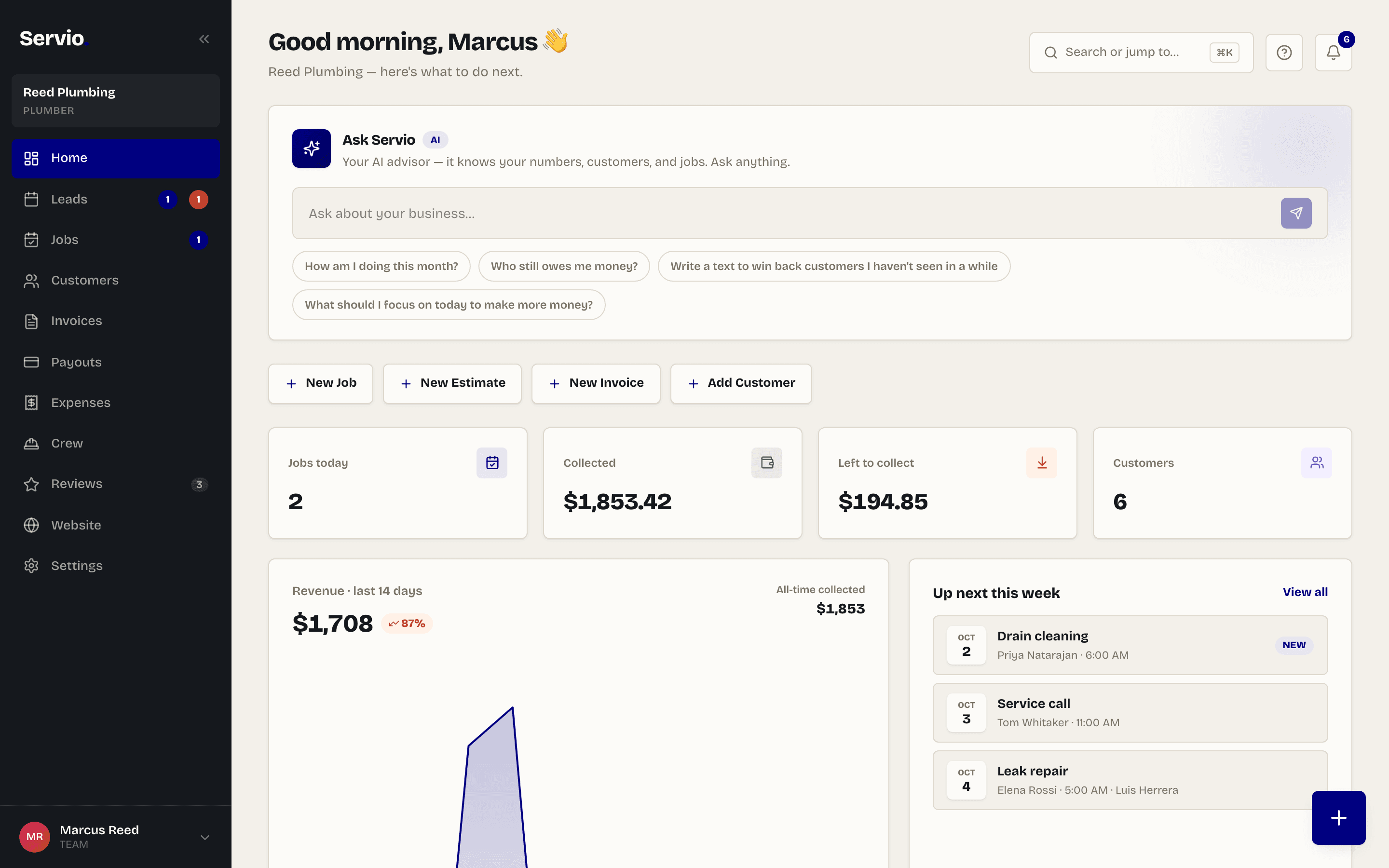
The left menu (on a phone, the ☰ button) takes you to each part of Servio: Jobs, Customers, Invoices, Payouts, Reviews, Crew, Website and Settings. The big + button in the corner creates a new job, estimate, invoice or customer from anywhere.
Tip:Press ⌘K (Mac) or Ctrl K (Windows) to search and jump to anything — a customer, a page, or an action like "Copy booking link".
Get your first booking#
Your booking link is your storefront. It looks like servio.fit/b/your-business. Customers open it, pick a service and a time, and the job lands in your Jobs list.
- 1On the dashboard home, find Your links and tap Copy next to *Booking link*.
- 2Paste it everywhere customers find you: your Instagram and Facebook bio, your Google Business Profile, your email signature, and in text messages when someone asks for an appointment.
- 3When a booking comes in you'll see it on the home screen and in Jobs with a Confirm button. Confirming sends the customer a confirmation.
Note:Try it yourself first: open your booking link on your phone and book a test appointment. Then cancel it from Jobs. It's the fastest way to see what your customers see.
Your first-week checklist#
The dashboard home shows a short checklist and ticks items off automatically as you go. Here it is in full:
- 1Set up your business — done when you finish the wizard.
- 2Add a service — at least one service with a price so customers can book and so you can collect payment.
- 3Share your booking link — paste it in your bios and send it to three customers today.
- 4Connect your bank — three minutes with Stripe. After this, customers can pay by card and the money lands in your bank. See Getting paid.
- 5Take a payment — collect your first job with a payment link, QR code, or Tap to Pay on iPhone. See Tap to Pay on iPhone.
- 6Ask for a review — text your review link after every finished job. See Reviews.
Get the iPhone app#
The Servio app for iPhone has the same jobs, customers and invoices as the website, plus the things that only make sense on a phone: calling and texting customers in one tap, navigating to the job, taking photos, and accepting cards in person with Tap to Pay on iPhone.
- 1Search Servio on the App Store and install it.
- 2Sign in with the same email and password you use on the website.
- 3The first time, the app shows a short walkthrough. You can replay it any time from More → Help.

Email support@servio.fit — tell us what you were trying to do and we'll answer the same day.