Invoices & estimates
Quote the work, turn the quote into a bill, get paid, keep tax-ready records.
Estimate vs. invoice#
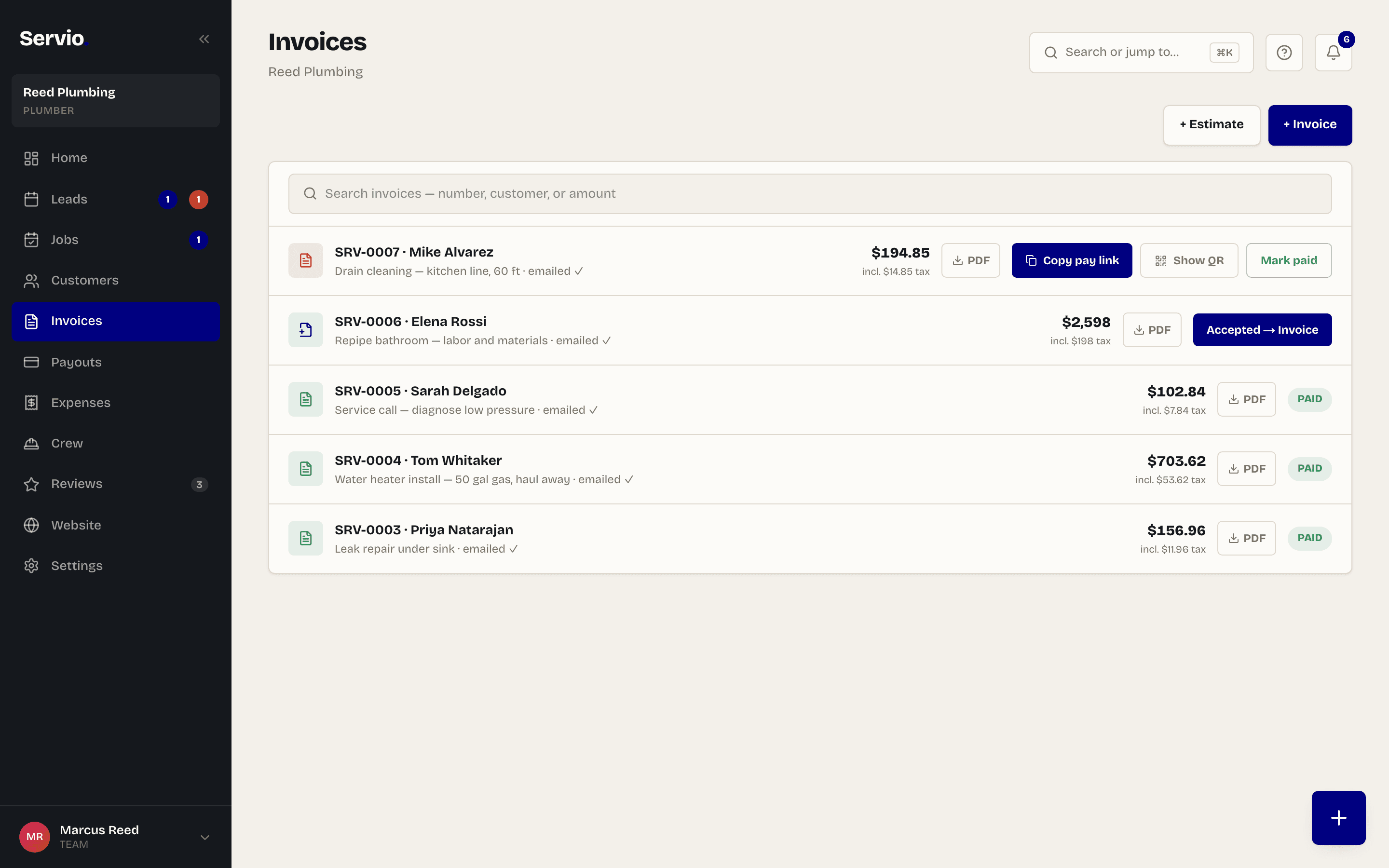
An estimate is a quote: "this is what it will cost". An invoice is a bill: "this is what you owe". In Servio they live in the same list (Invoices in the menu) and an estimate becomes an invoice with one tap when the customer says yes.
Create one#
- 1Tap + and choose New Estimate or New Invoice.
- 2Pick the customer. If they have an email on file Servio can send it for you.
- 3Describe the work in plain words — "Replace water heater, haul away old unit" — and enter the amount.
- 4Tap Create. Sales tax is added automatically if you set a rate in Settings.
Every invoice gets a number like SRV-0007 and a PDF you can download or email, with your business name, address and tax details.
Get it paid#
Once your bank is connected (see Getting paid), every invoice has a payment link. The customer opens it and pays by card — no account, no app. You can:
- Copy pay link and text it.
- Email it — Servio sends a clean email with a Pay button.
- Show QR — a code the customer scans with their phone camera when you're face to face.
- Tap to Pay on iPhone — in the iPhone app, open the invoice and tap Collect to take the card right there. See Tap to Pay on iPhone.
- Mark paid — for cash, check or a payment you took some other way.
When the money arrives, the invoice flips to Paid on its own and shows in your activity feed. Unpaid invoices get an automatic reminder after two days.
From estimate to paid, start to finish#
- 1Customer asks for a price → New Estimate → email it.
- 2They say yes → tap Accepted → Invoice. Same number, same details, now it's a bill.
- 3Do the work → Mark done on the job.
- 4Collect: send the link, show the QR, or use Tap to Pay on iPhone.
- 5Invoice shows Paid. The PDF is your record for taxes.
Sales tax and reports#
In Settings → Tax, pick your state and Servio fills in the usual rate (edit it if your city adds its own). Every invoice then shows the tax line. Payouts → Tax report builds a PDF of everything you collected and the tax you owe, by month or quarter — hand it to your accountant.
Expenses (next to Payouts in the menu) lets you log receipts — fuel, parts, tools — so your report shows profit, not just sales.
Email support@servio.fit — tell us what you were trying to do and we'll answer the same day.