Jobs & calendar
Every appointment in one list: confirm, schedule, assign, finish and collect.
The Jobs list#
A job is one appointment with one customer: a service, a time, a place and a price. Jobs come from your booking page or you add them yourself. Depending on your business type the menu might call them *Bookings*, *Appointments* or *Sessions* — it's the same thing.
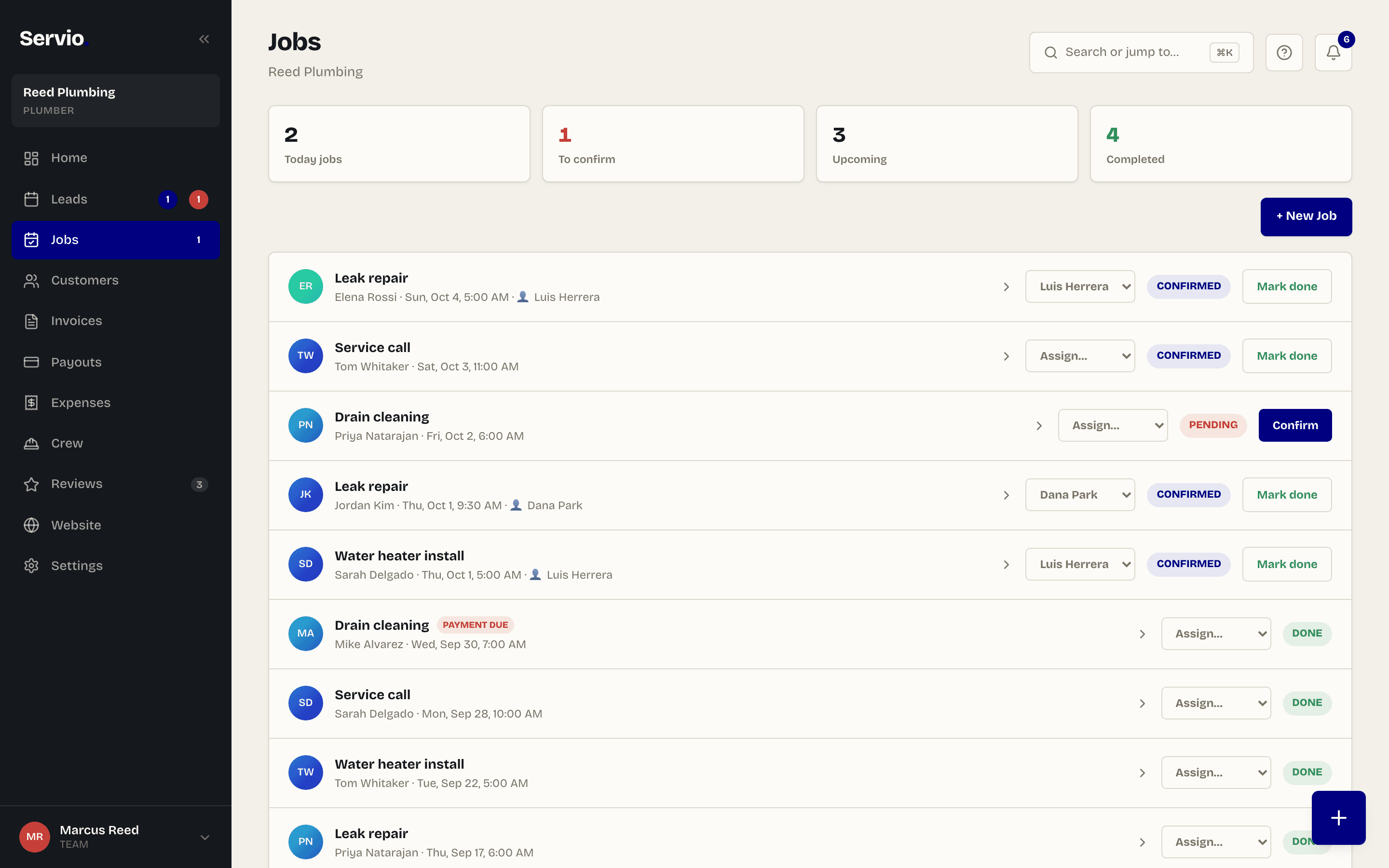
Each job has a status:
| Status | What it means | What to do |
|---|---|---|
| To confirm | A customer booked online and is waiting to hear back. | Tap Confirm (or cancel it). |
| Confirmed | It's on the calendar. | Do the work. Then Mark done. |
| Done | The work is finished. | If it has a price and isn't paid yet, it shows Payment due — collect it. |
| Cancelled | Won't happen. | Nothing. It stays in the list for your records. |
Add a job yourself#
- 1Tap the + button and choose New Job.
- 2Pick the customer (or type a new name — Servio creates the customer for you).
- 3Choose the service, date and time, and the address.
- 4Tap Book job. It's confirmed right away and the customer gets an email if you have their address.
Tip:Phone bookings: keep the app open while you talk, add the job, done. No notebook.
Inside a job#
Tap any job to open it. You'll see the customer with Call, Text and Email buttons, the address with a Navigate button, the time and price, notes, photos and a checklist. At the bottom are the two actions that matter: Mark as done and Collect payment.

In the iPhone app, when a finished job hasn't been paid, a big Collect $X · Tap to Pay on iPhone button sits at the top of the job — tap it and hold the customer's card to your phone. See Tap to Pay on iPhone.
The calendar#
The Calendar tab in the iPhone app shows what's coming, day by day, in time order. Tap any appointment to open the job. On the website the same information is on the home screen under Up next.
Your hours and availability#
Customers can only book inside your hours, so set them honestly. Go to Settings → Hours:
- By appointment — customers can pick any time from 8am to 6pm on the days you choose. Simplest option.
- Custom hours — set open and close times for each day, and mark days closed.
Each service also has a length. Servio uses it to avoid overlapping bookings: a 90-minute job blocks 90 minutes.
Automatic reminders#
You don't have to remind anyone of anything. Servio sends the customer an email about 24 hours before every confirmed appointment, a review request after you mark a job done, and a payment reminder when an invoice is still unpaid after two days (and then at most every three days).
Note:Reminders go out only while your plan is active, and never twice for the same job.
Assigning jobs to your team#
On the Team plan, every job has an Assign… menu. Pick a team member and the job shows up in their own app, with navigation, the checklist and photos. See Team & the tech app.
Email support@servio.fit — tell us what you were trying to do and we'll answer the same day.