Customers
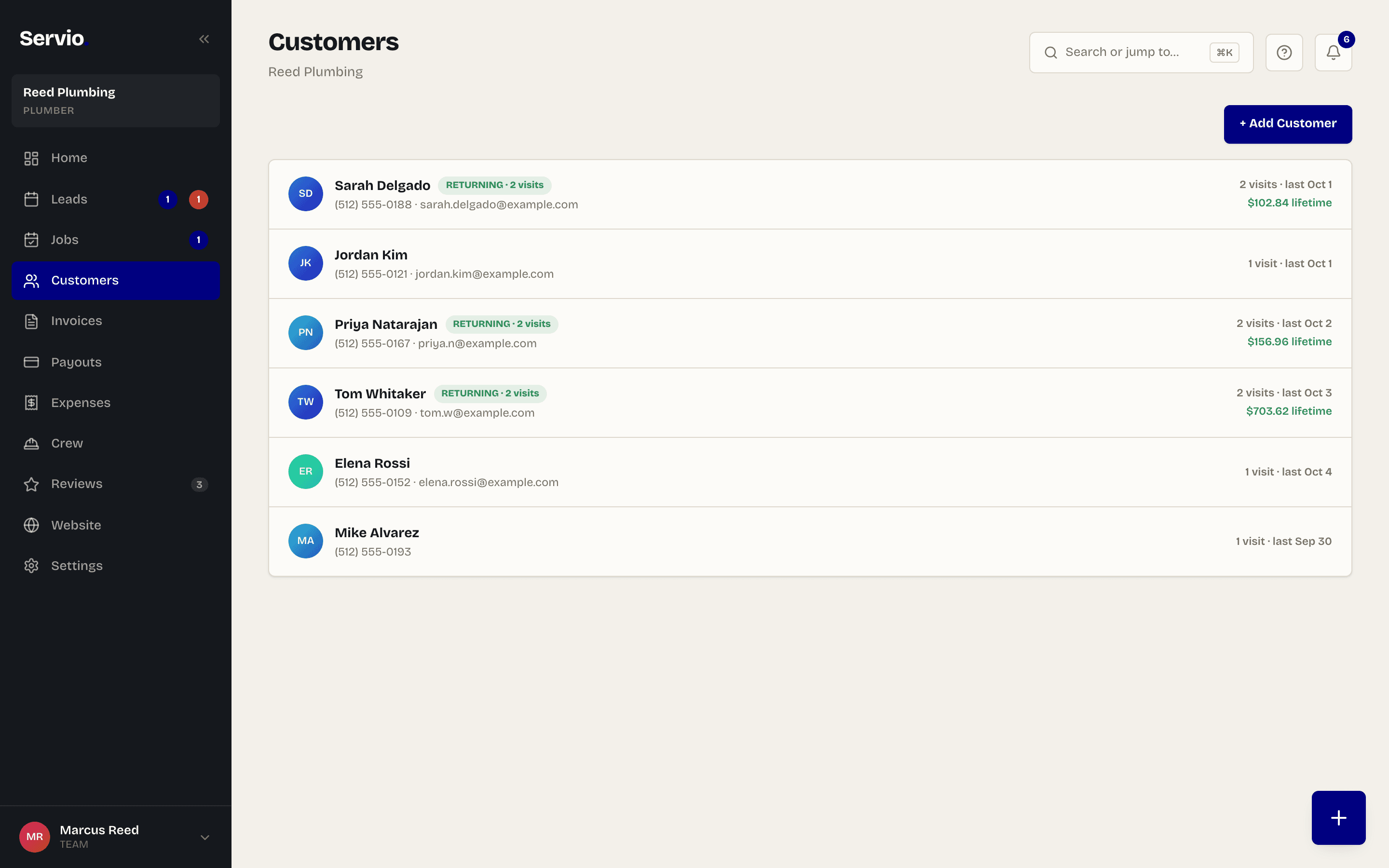
Your customer list builds itself. Here's what's in it and how to use it.
Where customers come from#
You almost never type a customer in. They're added automatically when they book online, when you add a job for a new name, or when you mark a lead as won. You can also add one directly with + → Add Customer.
A customer's profile#
Tap a customer to see their phone and email, every appointment they've had, every estimate and invoice, and what they've paid in total.

In the iPhone app, if a customer owes you money — an unpaid invoice or a finished job that hasn't been paid — a Collect $X · Tap to Pay on iPhone button appears at the top of their profile. One tap starts the payment with the customer and amount already filled in. When nothing is owed you'll see a smaller Take a payment button that opens Tap to Pay on iPhone with the customer selected so you only type the amount.
- Call / Text / Email — one tap each (iPhone app).
- New invoice for this customer — pre-filled with their name and email.
- Book a job — pre-filled with their details.
Finding someone fast#
Use the search box at the top of Customers, or press ⌘K on the website and start typing a name. In the iPhone app, pull down on the Customers list to reveal search.
Email support@servio.fit — tell us what you were trying to do and we'll answer the same day.