Your booking page
The page customers use to book you — what it shows, how a booking works, and how to make it yours.
5 min read · 4 sections
What customers see#
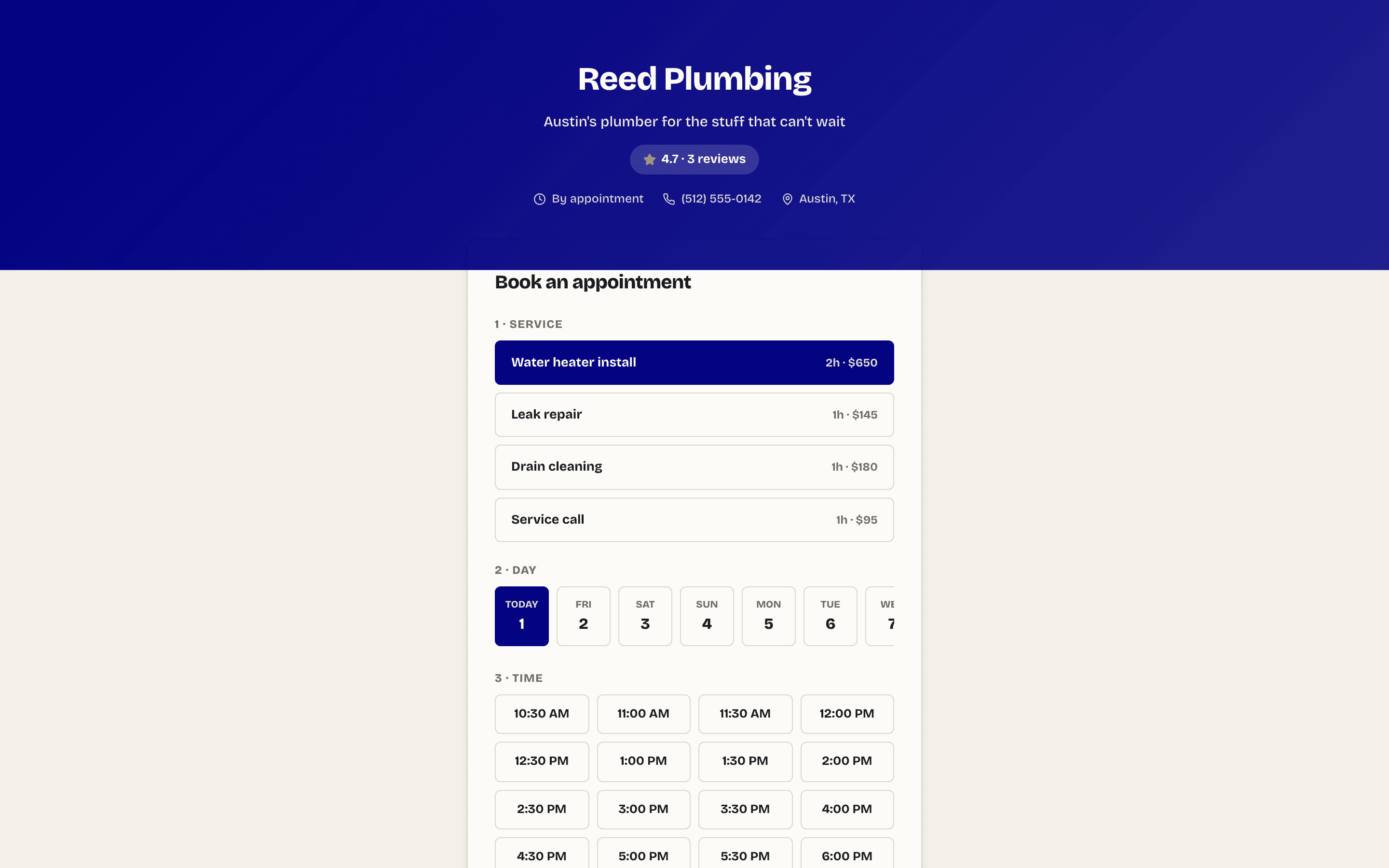
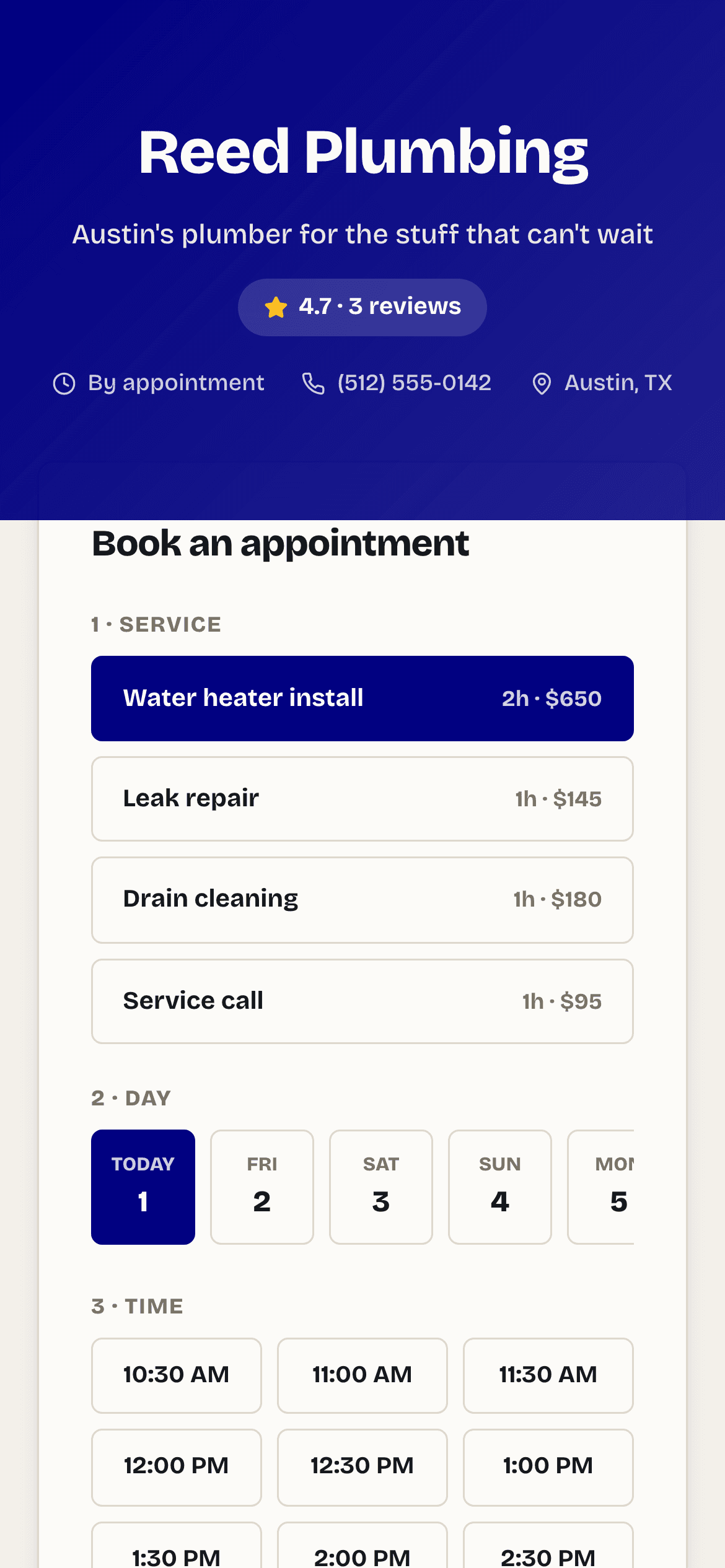
Your booking page is a simple, mobile-friendly website at servio.fit/b/your-business. It shows your name, city, phone, opening hours, your services with prices, your reviews, and a Book form. No app needed — it works in any browser.
How a booking works#
- 1The customer picks a service.
- 2They pick a day. Servio only shows times that are open — inside your hours, not already booked, and long enough for the service. No double-bookings.
- 3They enter their name, phone, email and address (the address is where the job happens).
- 4If the service has a price and your bank is connected, they can pay now by card or just request the booking.
- 5The booking appears in your Jobs list marked *To confirm*, and the customer is added to your Customers list automatically. You get a notification in the app.
- 6You tap Confirm. The customer gets a confirmation email, and about 24 hours before the appointment Servio sends them a reminder for you.
Tip:If a customer pays when booking, the job is confirmed and marked paid at the same time — nothing for you to do.
Make the page yours#
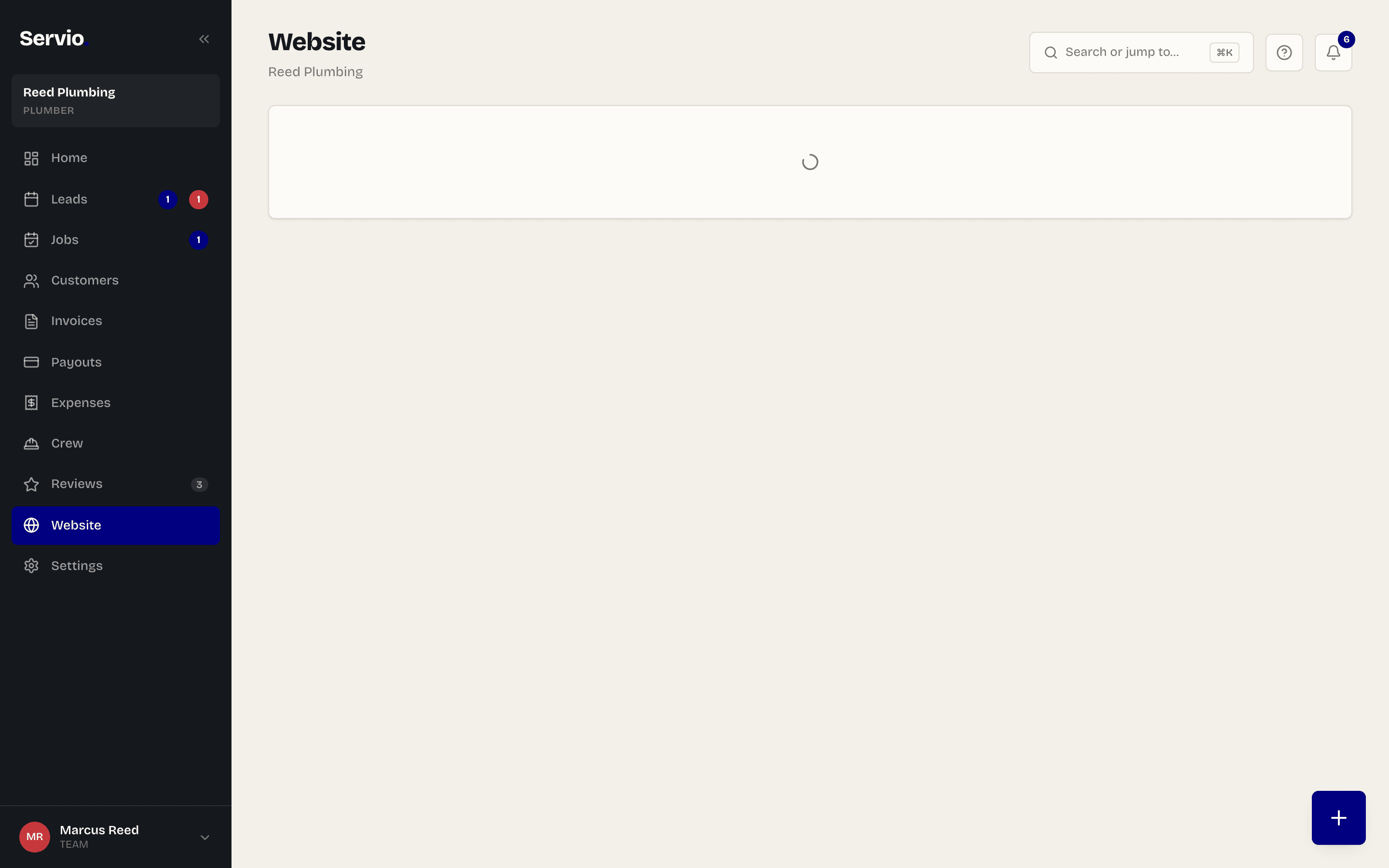
Open Website in the left menu to edit what the page says.
- Tagline — the one line under your business name, like "Miami's trusted plumber — book online in seconds".
- About — a short paragraph: who you are, how long you've been doing this, why to pick you.
- Photo — pick one of the included photos or paste a link to your own.
- Contact email and phone — shown on the page so customers can reach you.
Services, prices, hours, address and brand color live in Settings — see Settings and Jobs & calendar.
Didn't find what you needed?
Email support@servio.fit — tell us what you were trying to do and we'll answer the same day.