Getting paid
Connect your bank once. Then take cards online, by link, by QR code or in person — and watch the deposits arrive.
How the money flows#
Servio uses Stripe, the same payment company behind millions of businesses, to move money. Each card payment goes into your Stripe balance (not Servio's), and Stripe deposits it into your bank account automatically — usually within two business days.
Fees are taken out before the deposit, so what lands in your bank is yours. You pay Stripe's standard card fee for each payment plus Servio's small platform fee; both are shown in Payouts.
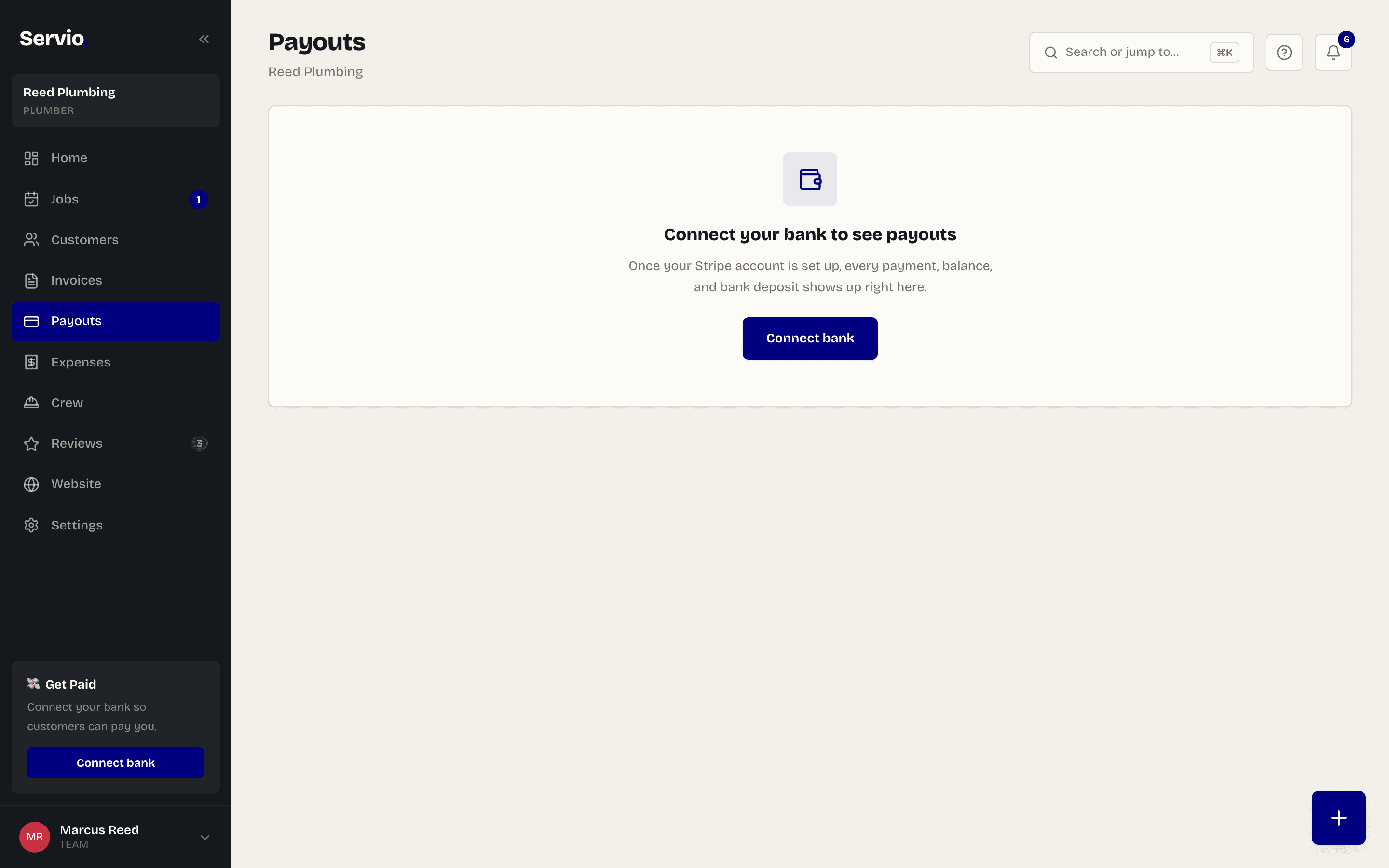
Connect your bank (one time, about 3 minutes)#
- 1On the dashboard, tap Connect bank (it's on the home screen and in Payouts; in the iPhone app it's under More → Payments & payouts).
- 2Stripe opens. Enter your legal name or business name, address, date of birth and the last four digits of your Social Security number — this is required by law for anyone taking card payments, and Servio never sees it.
- 3Enter the bank account you want deposits in (routing and account number, or log in to your bank).
- 4Tap Done. You're back in Servio and the Get Paid banner disappears.
Note:Stripe sometimes asks for one more thing later (like a photo ID) — you'll see a Finish bank setup button if so. Payments keep working while you finish.
Every way a customer can pay you#
| Way | Best for | Where |
|---|---|---|
| Pay when booking | Deposits and fixed-price services | Automatic on your booking page once connected |
| Payment link | Texting a bill | Any invoice → Copy pay link / Email it |
| QR code | Face to face, customer pays on their own phone | Any invoice or job → Show QR |
| Tap to Pay on iPhone | Face to face, fastest | iPhone app → Collect on any job, invoice or customer |
| Cash / check | Keeping records straight | Mark paid |
All of them end the same way: the job or invoice shows Paid, the customer can get a receipt, and the money shows in Payouts.
Payouts: watching the money#
Payouts shows three numbers: Available now (ready to go to your bank), Pending (paid in the last day or two, still clearing) and your recent bank deposits with the date each one arrives. Below that is every payment with its fee.
Open full dashboard takes you to your Stripe account, where you can change the bank account, set a weekly payout schedule, download statements or handle a dispute.
Refunds#
Open the paid job or invoice and tap Refund. The full amount goes back to the customer's card — it usually appears on their statement in 5–10 business days — and the job or invoice goes back to unpaid. Servio's platform fee is returned to you as well.
Email support@servio.fit — tell us what you were trying to do and we'll answer the same day.